GitHub Actions: Complete CI/CD Automation Guide
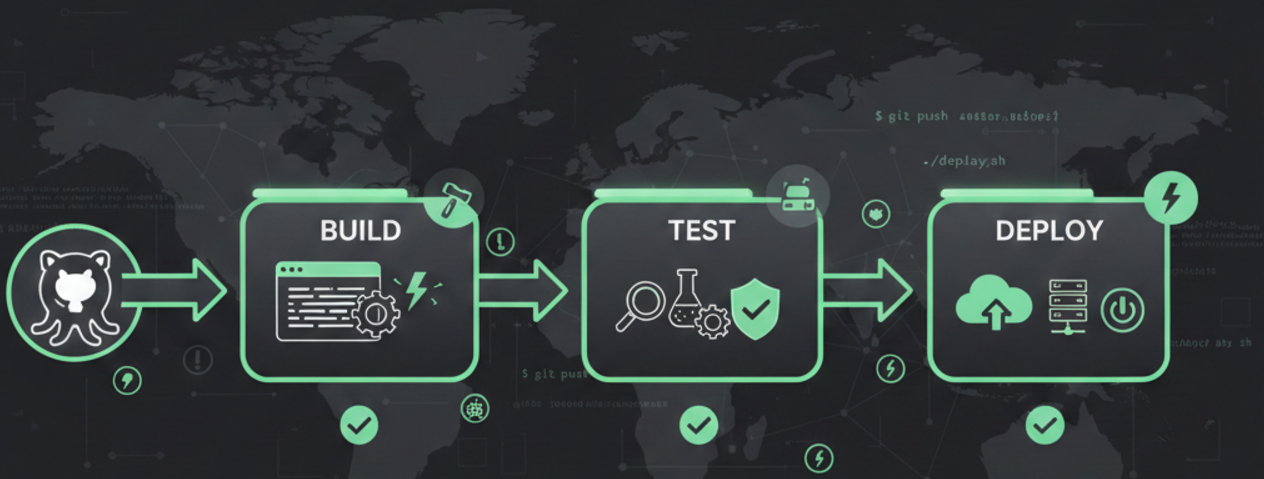
Imagine deploying your application to production with just a single git push. No manual testing, no deployment scripts, no server SSH sessions. GitHub Actions makes this dream a reality. In this comprehensive guide, you'll learn how to automate your entire software development workflow—from code commits to production deployments—using GitHub's powerful built-in automation platform.
What Is GitHub Actions?
GitHub Actions is a continuous integration and continuous delivery (CI/CD) platform that lives right inside your GitHub repository. Think of it as your personal automation assistant that springs into action whenever something happens in your code.
Unlike traditional CI/CD tools that require separate platforms and complex integrations, GitHub Actions works directly where your code lives. When you push code, open a pull request, or create an issue, GitHub Actions can automatically build your project, run tests, deploy applications, send notifications, or perform virtually any task you can script.
Why Developers Love GitHub Actions
According to GitHub's official documentation, Actions goes beyond DevOps by automating any repository workflow. You can automatically label new issues, assign pull requests to team members, deploy websites, publish packages, and even manage project boards—all without leaving GitHub. [GitHub Docs](https://docs.github.com/articles/getting-started-with-github-actions)
The Real-World Impact
Companies using GitHub Actions report significant improvements in development velocity. Instead of spending hours on manual deployments and testing, teams automate these workflows and focus on writing features. A typical deployment that once took 30 minutes of manual work now happens automatically in under 5 minutes.
Understanding Core Concepts
Before diving into workflows, let's understand the building blocks that make GitHub Actions work. These concepts form the foundation of every automation you'll create.
Workflows: Your Automation Blueprint
A workflow is like a recipe that tells GitHub Actions what to do and when to do it. You define workflows using YAML files stored in the .github/workflows directory of your repository. Each workflow can handle different tasks—one might test your code, another might deploy to production, and a third might scan for security vulnerabilities.
Events: The Trigger Points
Events are the spark that ignites your workflows. GitHub generates events when specific activities occur in your repository. Common events include:
- push - Code is pushed to a branch
- pull_request - A pull request is opened, closed, or updated
- schedule - Run on a cron schedule (like daily backups)
- release - A new release is published
- workflow_dispatch - Manual trigger from GitHub UI
Jobs: Organized Work Units
Jobs are sets of steps that execute on the same runner. By default, multiple jobs in a workflow run in parallel (simultaneously), but you can configure dependencies to run them sequentially. For example, you might have a "build" job and a "deploy" job, where deploy only runs after build succeeds.
Steps: Individual Tasks
Steps are the individual commands or actions within a job. Each step runs in sequence and can either execute shell commands or use pre-built actions. Steps share the same runner environment, so you can pass data between them—like building code in one step and testing it in the next.
Actions: Reusable Building Blocks
Actions are reusable units of code that perform common tasks. Instead of writing the same deployment script in every workflow, you use an action. GitHub's marketplace hosts thousands of community-created actions for tasks like checking out code, setting up programming environments, deploying to cloud platforms, and sending notifications.
Runners: Execution Environments
Runners are the virtual machines or servers that execute your workflows. GitHub provides hosted runners with Ubuntu Linux, Windows, and macOS pre-configured with popular development tools. Each workflow run gets a fresh, clean virtual machine. If you need custom hardware or software, you can host your own self-hosted runners.
How These Components Work Together
Event (push) → Triggers Workflow → Runs Jobs (parallel/sequential)
                                           ↓
                              Each Job has Steps on a Runner
                                           ↓
                              Steps use Actions or Shell Commands
Creating Your First GitHub Actions Workflow
Let's build a simple workflow that automatically tests your code whenever you push changes. This hands-on example will show you the practical structure of GitHub Actions.
Step 1: Create the Workflow Directory
In your repository, create the following directory structure:
mkdir -p .github/workflowsStep 2: Write Your First Workflow File
Create a file named .github/workflows/test.yml with this content:
name: Run Tests

on:
  push:
    branches: [ main, develop ]
  pull_request:
    branches: [ main ]

jobs:
  test:
    runs-on: ubuntu-latest

    steps:
    - name: Check out code
      uses: actions/checkout@v4

    - name: Set up Node.js
      uses: actions/setup-node@v4
      with:
        node-version: '20'

    - name: Install dependencies
      run: npm install

    - name: Run tests
      run: npm test
Understanding the Workflow
Let's break down what each section does:
name
Gives your workflow a human-readable name that appears in the GitHub Actions tab.
on
Specifies when the workflow runs. This example triggers on pushes to main/develop branches and pull requests to main.
jobs
Contains all the jobs in the workflow. Here we have one job named "test".
runs-on
Specifies which runner to use. ubuntu-latest is the most common choice for general-purpose workflows.
steps
The individual commands that execute sequentially. Uses pre-built actions and shell commands.
Step 3: Commit and Push
Save your workflow file and push it to GitHub:
git add .github/workflows/test.yml
git commit -m "Add automated testing workflow"
git push origin main
Step 4: Watch It Run
Navigate to the Actions tab in your GitHub repository. You'll see your workflow running in real-time. Click on it to view detailed logs of each step. If everything works correctly, you'll see green checkmarks. If something fails, you'll see red X marks with error logs explaining what went wrong.
Pro Tip: Start Simple
When creating workflows, start with basic functionality and gradually add complexity. Test each addition to identify issues quickly. It's much easier to debug a simple workflow than a complex one with multiple jobs and conditional logic.
Mastering Workflow Triggers
Triggers determine when your workflows run. GitHub Actions provides incredible flexibility in how you activate automations. Let's explore the most useful trigger patterns.
Push Events: The Foundation
on:
  push:
    branches:
      - main
      - 'release/**'  # Matches release/v1, release/v2, etc.
    paths:
      - 'src/**'       # Only trigger if files in src/ changed
      - '!src/docs/**' # Exclude docs from triggering
This configuration runs the workflow only when code is pushed to main or release branches, and only if files in the src directory (excluding docs) were modified. This prevents unnecessary workflow runs when you update README files or documentation.
Pull Request Events: Quality Gates
on:
  pull_request:
    types: [opened, synchronize, reopened]
    branches:
      - main
      - develop
This triggers when pull requests are opened, updated with new commits, or reopened. Perfect for running automated tests before code merges.
Scheduled Workflows: Cron Jobs
on:
  schedule:
    - cron: '0 2 * * *'  # Run at 2 AM UTC daily
    - cron: '0 0 * * 0'  # Run at midnight every Sunday
Scheduled workflows are perfect for nightly builds, daily backups, weekly reports, or periodic dependency updates. The cron syntax follows standard Unix cron format.
Manual Triggers: On-Demand Workflows
on:
  workflow_dispatch:
    inputs:
      environment:
        description: 'Environment to deploy to'
        required: true
        type: choice
        options:
          - staging
          - production
      version:
        description: 'Version number'
        required: false
        type: string
Manual triggers let you run workflows on demand from the GitHub UI with custom inputs. Great for deployment workflows or maintenance tasks that shouldn't run automatically.
Multiple Trigger Combinations
on:
  push:
    branches: [ main ]
  pull_request:
    branches: [ main ]
  schedule:
    - cron: '0 0 * * 1'  # Monday midnight
  workflow_dispatch:
You can combine multiple triggers in a single workflow. This example runs on pushes, pull requests, weekly on Monday, and allows manual triggering.
Leveraging the GitHub Actions Marketplace
The GitHub Actions Marketplace contains thousands of pre-built actions that save you from reinventing the wheel. Instead of writing custom scripts for common tasks, you use battle-tested actions maintained by the community.
Essential Marketplace Actions
actions/checkout@v4
The most used action in GitHub Actions. Checks out your repository so the workflow can access your code.
- uses: actions/checkout@v4actions/setup-node@v4
Sets up Node.js environment with specified version and caching for faster builds.
- uses: actions/setup-node@v4
  with:
    node-version: '20'
    cache: 'npm'
docker/build-push-action@v5
Builds and pushes Docker images to container registries with advanced caching support.
- uses: docker/build-push-action@v5
  with:
    push: true
    tags: myapp:latest
actions/cache@v4
Caches dependencies and build outputs between workflow runs to speed up execution.
- uses: actions/cache@v4
  with:
    path: ~/.npm
    key: ${{ runner.os }}-node-${{ hashFiles('**/package-lock.json') }}
Finding the Right Actions
Visit the GitHub Marketplace at github.com/marketplace?type=actions and search by keyword. Each action page shows usage examples, input parameters, and user reviews. Popular actions have thousands of stars and verified publisher badges, indicating reliability.
Security Best Practice
Always pin actions to specific commit SHAs or version tags (like @v4) rather than using @main or @master. This prevents malicious updates from automatically running in your workflows. For example, use actions/checkout@v4 instead of actions/checkout@main.
Real-World Workflow Examples
Theory is great, but seeing practical examples is where GitHub Actions truly clicks. Let's explore complete workflows that solve real development challenges.
Complete CI/CD Pipeline for Node.js Application
name: CI/CD Pipeline

on:
  push:
    branches: [ main ]
  pull_request:
    branches: [ main ]

jobs:
  test:
    runs-on: ubuntu-latest

    strategy:
      matrix:
        node-version: [18, 20]

    steps:
    - uses: actions/checkout@v4

    - name: Setup Node.js ${{ matrix.node-version }}
      uses: actions/setup-node@v4
      with:
        node-version: ${{ matrix.node-version }}
        cache: 'npm'

    - name: Install dependencies
      run: npm ci

    - name: Run linter
      run: npm run lint

    - name: Run tests
      run: npm test

    - name: Upload coverage reports
      uses: codecov/codecov-action@v3
      if: matrix.node-version == 20

  deploy:
    needs: test
    runs-on: ubuntu-latest
    if: github.ref == 'refs/heads/main' && github.event_name == 'push'

    steps:
    - uses: actions/checkout@v4

    - name: Deploy to production
      run: |
        echo "Deploying to production..."
        # Add your deployment commands here
      env:
        DEPLOY_TOKEN: ${{ secrets.DEPLOY_TOKEN }}
This workflow demonstrates several powerful concepts:
- Matrix Strategy: Tests code on both Node.js 18 and 20 simultaneously
- Job Dependencies: Deploy job only runs after test job succeeds
- Conditional Execution: Deploy only runs on main branch pushes, not pull requests
- Secrets Management: Uses encrypted secrets for deployment credentials
- Caching: Speeds up builds by caching npm dependencies
Docker Build and Push to Registry
name: Docker Build and Push

on:
  push:
    branches: [ main ]
    tags:
      - 'v*'

jobs:
  docker:
    runs-on: ubuntu-latest

    steps:
    - uses: actions/checkout@v4

    - name: Set up Docker Buildx
      uses: docker/setup-buildx-action@v3

    - name: Log in to Docker Hub
      uses: docker/login-action@v3
      with:
        username: ${{ secrets.DOCKER_USERNAME }}
        password: ${{ secrets.DOCKER_PASSWORD }}

    - name: Extract metadata
      id: meta
      uses: docker/metadata-action@v5
      with:
        images: myusername/myapp
        tags: |
          type=ref,event=branch
          type=semver,pattern={{version}}
          type=semver,pattern={{major}}.{{minor}}

    - name: Build and push Docker image
      uses: docker/build-push-action@v5
      with:
        context: .
        push: true
        tags: ${{ steps.meta.outputs.tags }}
        labels: ${{ steps.meta.outputs.labels }}
        cache-from: type=gha
        cache-to: type=gha,mode=max
This workflow builds Docker images and pushes them to Docker Hub. It automatically generates semantic version tags and leverages GitHub Actions cache for faster builds. When you push tag v1.2.3, it creates tags 1.2.3, 1.2, and latest.
Automated Dependency Updates
name: Update Dependencies

on:
  schedule:
    - cron: '0 0 * * 1'  # Every Monday at midnight
  workflow_dispatch:

jobs:
  update:
    runs-on: ubuntu-latest

    steps:
    - uses: actions/checkout@v4

    - name: Setup Node.js
      uses: actions/setup-node@v4
      with:
        node-version: '20'

    - name: Update dependencies
      run: |
        npm update
        npm audit fix

    - name: Create Pull Request
      uses: peter-evans/create-pull-request@v6
      with:
        commit-message: 'chore: update dependencies'
        title: 'Weekly Dependency Updates'
        body: 'Automated dependency updates from GitHub Actions'
        branch: dependency-updates
        labels: dependencies
This workflow runs weekly, updates your dependencies, fixes security vulnerabilities, and automatically creates a pull request for review. No more manual dependency maintenance!
Managing Secrets Securely
Workflows often need sensitive information like API keys, passwords, and tokens. GitHub Actions provides encrypted secrets to handle these securely without exposing them in your code.
Adding Secrets to Your Repository
- Navigate to your repository on GitHub
- Click Settings → Secrets and variables → Actions
- Click New repository secret
- Enter a name (like
DEPLOY_TOKEN) and value - Click Add secret
Using Secrets in Workflows
jobs:
  deploy:
    runs-on: ubuntu-latest

    steps:
    - name: Deploy application
      run: ./deploy.sh
      env:
        API_KEY: ${{ secrets.API_KEY }}
        DATABASE_URL: ${{ secrets.DATABASE_URL }}
        AWS_ACCESS_KEY: ${{ secrets.AWS_ACCESS_KEY }}
Secrets are injected as environment variables and never appear in logs. GitHub automatically masks secret values if they accidentally get printed, replacing them with ***.
Environment-Specific Secrets
For different deployment environments (staging, production), use environment secrets:
jobs:
  deploy:
    runs-on: ubuntu-latest
    environment: production

    steps:
    - name: Deploy to production
      run: ./deploy.sh
      env:
        API_URL: ${{ secrets.API_URL }}  # Uses production environment secret
Critical Security Rules
- Never commit secrets to your repository—even in private repos
- Rotate secrets immediately if they're accidentally exposed
- Use least-privilege principle—give secrets only necessary permissions
- Regularly audit which secrets exist and remove unused ones
- Use environment protection rules to require approvals before deployment
Self-Hosted Runners: Taking Control
While GitHub-hosted runners work great for most projects, self-hosted runners give you complete control over the execution environment. You might want self-hosted runners for:
- Access to specific hardware (GPUs, high memory machines)
- Faster builds with persistent caching
- Access to internal network resources
- Compliance requirements for on-premises execution
- Avoiding minute limits on private repositories
Setting Up a Self-Hosted Runner
- Go to your repository → Settings → Actions → Runners
- Click New self-hosted runner
- Choose your operating system
- Follow the provided commands to download and configure the runner
# Example commands for Linux
mkdir actions-runner && cd actions-runner
curl -o actions-runner-linux-x64-2.311.0.tar.gz -L https://github.com/actions/runner/releases/download/v2.311.0/actions-runner-linux-x64-2.311.0.tar.gz
tar xzf ./actions-runner-linux-x64-2.311.0.tar.gz
./config.sh --url https://github.com/yourusername/your-repo --token YOUR_TOKEN
./run.sh
Using Self-Hosted Runners in Workflows
jobs:
  build:
    runs-on: self-hosted

    steps:
    - uses: actions/checkout@v4
    - name: Build on self-hosted runner
      run: make build
You can also label runners and target specific labels:
runs-on: [self-hosted, linux, x64, gpu]Self-Hosted Runner Security
Only use self-hosted runners for private repositories you control. Self-hosted runners for public repositories can execute arbitrary code from pull requests, creating security risks. GitHub-hosted runners provide isolation that self-hosted runners don't guarantee.
Advanced Workflow Techniques
Reusable Workflows: DRY Principle
Instead of copying the same workflow configuration across multiple repositories, create reusable workflows:
# .github/workflows/reusable-deploy.yml
name: Reusable Deploy Workflow

on:
  workflow_call:
    inputs:
      environment:
        required: true
        type: string
    secrets:
      deploy-token:
        required: true

jobs:
  deploy:
    runs-on: ubuntu-latest
    environment: ${{ inputs.environment }}

    steps:
    - uses: actions/checkout@v4
    - name: Deploy to ${{ inputs.environment }}
      run: ./deploy.sh
      env:
        TOKEN: ${{ secrets.deploy-token }}
Call the reusable workflow from other workflows:
# .github/workflows/production-deploy.yml
name: Production Deployment

on:
  push:
    branches: [ main ]

jobs:
  call-deploy:
    uses: ./.github/workflows/reusable-deploy.yml
    with:
      environment: production
    secrets:
      deploy-token: ${{ secrets.PROD_DEPLOY_TOKEN }}
Matrix Builds: Test Multiple Configurations
jobs:
  test:
    runs-on: ${{ matrix.os }}

    strategy:
      matrix:
        os: [ubuntu-latest, windows-latest, macos-latest]
        node-version: [18, 20, 21]
        exclude:
          - os: macos-latest
            node-version: 18

    steps:
    - uses: actions/checkout@v4
    - uses: actions/setup-node@v4
      with:
        node-version: ${{ matrix.node-version }}
    - run: npm test
This creates separate jobs for each combination (like ubuntu-20, windows-18, etc.), running them in parallel. The exclude option lets you skip specific combinations.
Conditional Steps and Jobs
jobs:
  deploy:
    runs-on: ubuntu-latest

    steps:
    - uses: actions/checkout@v4

    - name: Deploy to staging
      if: github.ref == 'refs/heads/develop'
      run: ./deploy-staging.sh

    - name: Deploy to production
      if: github.ref == 'refs/heads/main' && github.event_name == 'push'
      run: ./deploy-production.sh

    - name: Report failure
      if: failure()
      run: echo "Build failed!" | mail -s "Build Alert" team@example.com
Artifact Sharing Between Jobs
jobs:
  build:
    runs-on: ubuntu-latest

    steps:
    - uses: actions/checkout@v4
    - run: npm run build

    - name: Upload build artifacts
      uses: actions/upload-artifact@v4
      with:
        name: build-output
        path: dist/

  test:
    needs: build
    runs-on: ubuntu-latest

    steps:
    - name: Download build artifacts
      uses: actions/download-artifact@v4
      with:
        name: build-output
        path: dist/

    - run: npm test
Optimization and Best Practices
Speed Up Workflows with Caching
Caching dependencies dramatically reduces workflow execution time:
steps:
- uses: actions/checkout@v4

- name: Cache Node modules
  uses: actions/cache@v4
  with:
    path: ~/.npm
    key: ${{ runner.os }}-node-${{ hashFiles('**/package-lock.json') }}
    restore-keys: |
      ${{ runner.os }}-node-

- run: npm ci
- run: npm test
This caches npm modules between runs. The first run downloads everything, but subsequent runs restore from cache in seconds instead of minutes.
Optimize Docker Builds
- name: Build Docker image with cache
  uses: docker/build-push-action@v5
  with:
    context: .
    push: true
    tags: myapp:latest
    cache-from: type=registry,ref=myapp:buildcache
    cache-to: type=registry,ref=myapp:buildcache,mode=max
Concurrency Control
Prevent multiple workflow runs from interfering with each other:
concurrency:
  group: ${{ github.workflow }}-${{ github.ref }}
  cancel-in-progress: true
This cancels older workflow runs when new commits are pushed, saving compute minutes and providing faster feedback.
Timeout Protection
jobs:
  build:
    runs-on: ubuntu-latest
    timeout-minutes: 30  # Fail if job takes longer than 30 minutes

    steps:
    - uses: actions/checkout@v4
      timeout-minutes: 5  # Individual step timeout
    - run: npm test
      timeout-minutes: 15
Do: Use Specific Action Versions
Pin actions to major versions (v4) or specific commits for stability and security.
Do: Minimize Workflow Scope
Use path filters to trigger workflows only when relevant files change.
Don't: Hardcode Secrets
Never put passwords, tokens, or API keys directly in workflow files.
Don't: Ignore Failed Workflows
Fix failing workflows immediately—they indicate real problems in your code or infrastructure.
Debugging Failed Workflows
Even well-designed workflows fail sometimes. Here's how to diagnose and fix issues quickly.
Enable Debug Logging
Add these secrets to your repository for detailed logs:
ACTIONS_STEP_DEBUG=trueACTIONS_RUNNER_DEBUG=true
Re-run the workflow to see verbose output showing exact commands executed and their outputs.
Interactive Debugging with tmate
steps:
- uses: actions/checkout@v4
- name: Setup tmate session
  uses: mxschmitt/action-tmate@v3
  if: failure()  # Only start debugging session on failure
This action provides an SSH connection to the runner where you can inspect files, run commands, and debug interactively.
Test Workflows Locally
Use the act tool to run GitHub Actions workflows on your local machine:
# Install act
brew install act  # macOS
# or
curl https://raw.githubusercontent.com/nektos/act/master/install.sh | sudo bash

# Run workflow locally
act push

# Run specific job
act -j build

# Use different event
act pull_request
Understanding GitHub Actions Pricing
GitHub Actions pricing is based on compute minutes and storage. Understanding costs helps you optimize workflows without breaking the budget.
Free Tier Limits
- Public repositories: Unlimited minutes and storage (free forever)
- Private repositories (Free plan): 2,000 minutes/month
- Private repositories (Pro plan): 3,000 minutes/month
- Private repositories (Team plan): 10,000 minutes/month
Minute Multipliers
Different runner types consume minutes at different rates:
- Linux: 1x multiplier (1 minute = 1 minute)
- Windows: 2x multiplier (1 minute = 2 minutes)
- macOS: 10x multiplier (1 minute = 10 minutes)
A 10-minute workflow on macOS consumes 100 minutes from your quota. Use Linux runners when possible for cost efficiency.
Cost Optimization Strategies
- Use self-hosted runners for unlimited free minutes
- Cache dependencies to reduce build times
- Use path filters to avoid unnecessary workflow runs
- Cancel in-progress runs when new commits arrive
- Run expensive tests only on main branch, not every PR
- Use Linux runners instead of macOS when possible
GitHub Actions vs. Competitors
How does GitHub Actions stack up against other CI/CD tools? Let's compare based on real-world usage and community feedback.
| Feature | GitHub Actions | Jenkins | CircleCI |
|---|---|---|---|
| Setup Complexity | Zero setup (built-in) | Requires server management | Cloud-based, easy setup |
| Cost | 2,000 free minutes/month | Free (self-hosted costs) | Limited free tier |
| Integration | Native GitHub integration | Requires plugins | Good Git integration |
| Community Actions | 10,000+ marketplace actions | 1,800+ plugins | Limited orbs |
| Configuration | YAML files in repo | Jenkinsfile or UI | YAML config |
When to Choose GitHub Actions
- Your code is already on GitHub
- You want zero infrastructure management
- Your team needs quick CI/CD setup
- You have moderate compute requirements
- You want tight integration with GitHub features
When to Consider Alternatives
- Jenkins: Need extreme customization or already have Jenkins infrastructure
- CircleCI: Need advanced caching strategies or complex pipeline orchestration
- GitLab CI: Using GitLab for version control
Conclusion
GitHub Actions has revolutionized how developers approach CI/CD automation. By bringing automation directly into GitHub, it eliminates complexity and reduces the barriers to implementing professional DevOps practices.
Throughout this guide, you've learned:
- Core concepts: Workflows, jobs, steps, actions, and runners that form the foundation
- Practical workflows: Real-world examples from testing to deployment
- Advanced techniques: Matrix builds, reusable workflows, and conditional execution
- Optimization strategies: Caching, concurrency control, and cost management
- Security practices: Secrets management and action pinning
- Debugging methods: Tools and techniques to troubleshoot failed workflows
The beauty of GitHub Actions lies in its progressive complexity. You can start with simple workflows and gradually incorporate advanced features as your needs grow. Whether you're a solo developer or part of a large team, GitHub Actions scales to meet your automation requirements.
Your Next Steps
- Create your first workflow using the examples in this guide
- Explore the GitHub Actions Marketplace for pre-built actions
- Automate your testing and deployment pipelines
- Experiment with advanced features like matrix builds
- Share your workflows with the community
- Read the official GitHub Actions documentation for deeper insights
Remember: The goal isn't to automate everything immediately. Start with high-value automations that save the most time—typically testing and deployment workflows. As you gain confidence, expand automation to cover more aspects of your development lifecycle.
GitHub Actions isn't just a tool—it's a mindset shift toward automated, reliable, and repeatable software delivery. Embrace it, and you'll wonder how you ever developed software without it.
Frequently Asked Questions
Related Articles You May Like
- Top Coding Tips: Clean Code, Boost Productivity, Master Practices
Best Practices • Intermediate
- The Ultimate Guide to Code Debugging: Techniques, Tools & Tips
Debugging • Intermediate
- Master Git: 10 Essential Commands Every Developer Should Learn
Git • Beginner
- How to Debug Laravel SQL Queries in API Requests: A Developer's Guide
Laravel • Intermediate
- Setting Up Gmail SMTP in Laravel: A Comprehensive Guide
Laravel • Intermediate
- Mastering Laravel Login System: A Comprehensive Guide
Laravel • Intermediate